Screenshots show the French version of the app.
Someone from your company only sees a site if they are part of its team. You add them from the site's Team tab, once they have accepted their invitation (see How do you invite your team?).
Adding and removing members is reserved for Admin, Manager and the person who created the site.
Add someone from the app
- Open the site, then the Team tab.
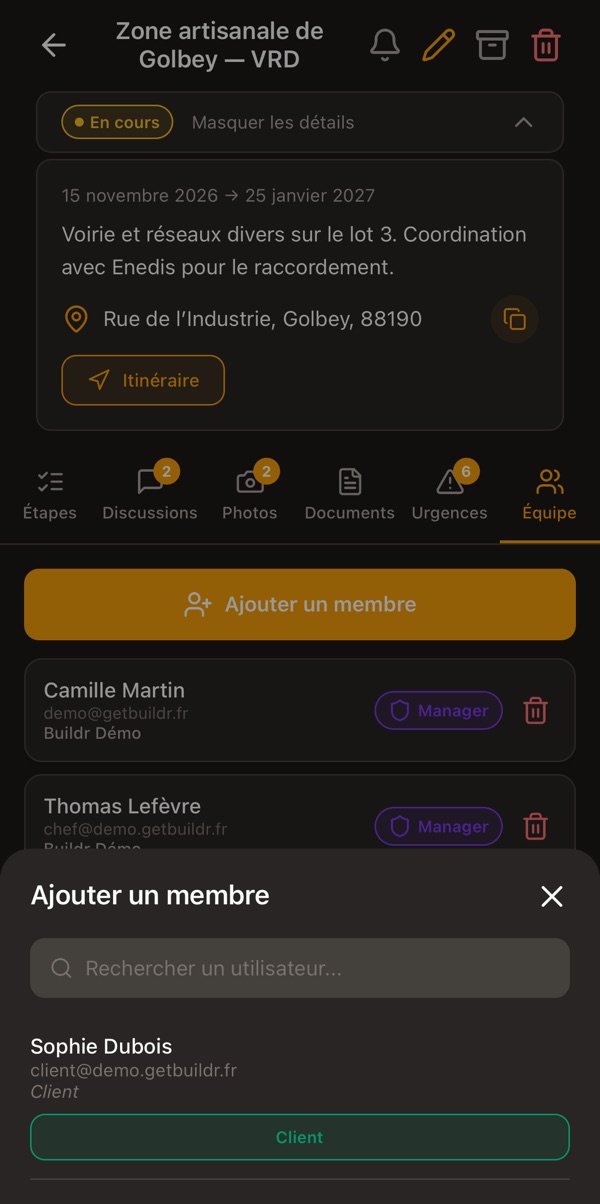
- Tap Add a member. The list of people not yet on the site opens; look for someone with Search for a user....
- Tap the colored role to the right of their name (Manager, Worker, Client or Network manager). This role on the site follows from their role in the company (see What can each role do?).
- For a manager or a worker, that's it: the person is added right away.
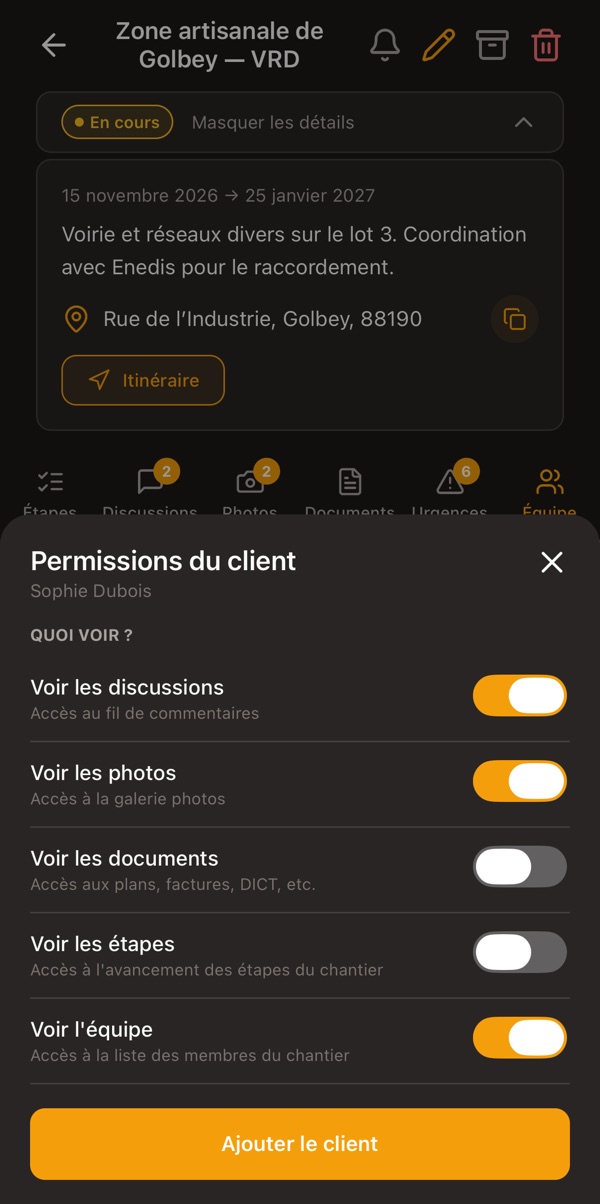
- For a client or a network manager, the Client permissions (or Network manager permissions) window opens first. Under WHAT CAN THEY SEE?, turn on or off what they see, then tap Add the client (or Add the network manager).
Add someone from the dashboard
- Open the site, then the Team tab.
- Click Add a member, at the top right.
- In User, choose the person. Their role on the site appears just below.
- Click Add. For a client or a network manager, the button is called Configure permissions: check what they see in the window that opens, then click Add to site.
What the added person receives
- The site appears in their list, with the permissions of their role.
- They receive a notification on their phone: "… added you to this site", unless they have turned off Added to a site in their settings (see How do you choose the notifications you receive?).
- If they have linked their calendar to Buildr, the site appears in it (see How do you see your sites in your calendar?).
To then adjust what they see, person by person, see Adjust a person's permissions on a site.
Remove someone from a site
In the app
- Open the site, Team tab.
- Tap the trash can to the right of the person. You can also tap the person, then Remove from the site.
- Confirm with Remove.
In the dashboard
- Open the site, Team tab.
- Hover over the person's row: a trash can appears on the right. Click it.
- Confirm with Delete.
The site immediately disappears from their list, and from their calendar if it is linked. They don't receive a notification. Their messages, photos and documents stay on the site.
Good to know
- A manager only sees the people of their own team in the list: those they invited themselves, and those an administrator has assigned to them in the app (Team tab, the manager's profile, Manage the team). An administrator sees the whole company.
- An administrator sees all the company's sites, even without being part of their team.
- Removing someone from a site doesn't affect their account: they keep their other sites. To cut someone's access to Buildr entirely, see How do you deactivate an account or resend an invitation?.
- On an archived site, the app no longer lets you change the team.
- The permissions offered when adding a client or a network manager are your company's default role permissions.