Screenshots show the French version of the app.
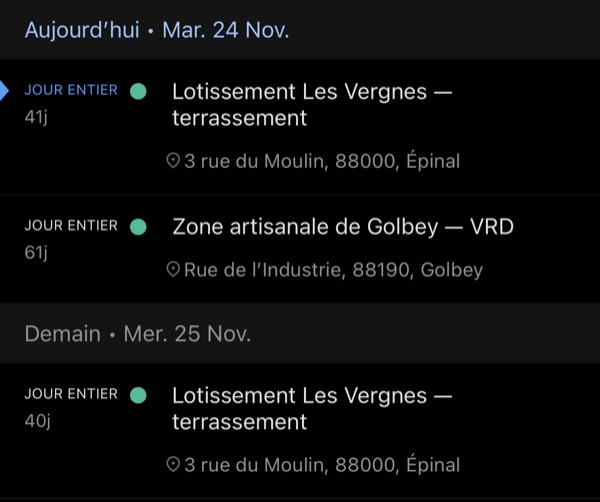
Buildr can show your site dates in the calendar you already use. Each site appears there as an all-day event, from its start date to its end date, with its name, description and address.
Google Calendar or Outlook
- Open the Profile tab.
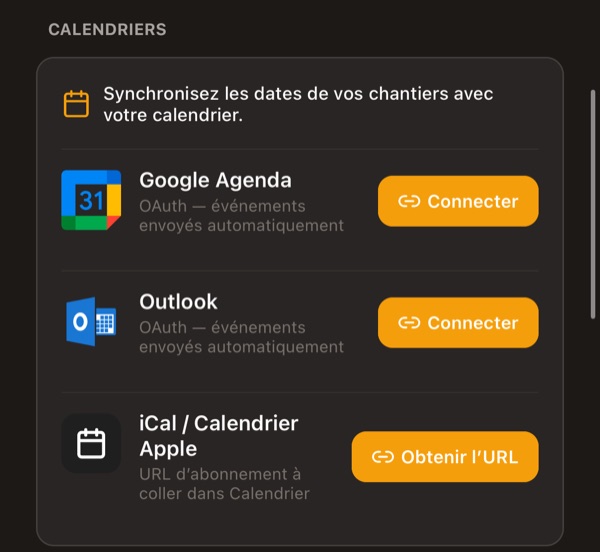
- Under CALENDARS, tap Connect next to Google Calendar or Outlook.
- Sign in with the Google or Microsoft account of your calendar, then accept access to your calendar.
- Back in the app, the button becomes Disconnect: it is connected.
Your sites arrive in your main calendar within a minute. After that, everything follows automatically: a change of dates, name or address is carried over, a new site you are added to appears, a site that is archived or that you are removed from disappears.
Apple Calendar or another calendar (iCal subscription)
- Open the Profile tab.
- Under CALENDARS, tap Get the URL next to iCal / Apple Calendar. The address is copied.
- Add it to your calendar:
- iPhone: Settings → Calendar → Accounts → Add Account → Other → Add Subscribed Calendar, then paste the address;
- Mac: in Calendar, File → New Calendar Subscription, then paste the address.
To find the address again later, tap it under iCal / Apple Calendar: it is copied again.
This address also works in other calendars that accept a subscription: Outlook (Add calendar → Subscribe from web) or Google Calendar (Other calendars → From URL). The calendar is then read-only and updates at your calendar app's pace, often every few hours.
Disconnect a calendar
- Under CALENDARS, tap Disconnect next to the calendar.
- Confirm with Disconnect.
For Google Calendar and Outlook, the sites Buildr added to your calendar are removed from it. For the iCal subscription, events already there may stay in your calendar but are no longer updated: also remove the subscription in your calendar.
Good to know
- Only sites you are a member of and that have a start date and an end date appear. Add the dates to the site to see it in your calendar.
- Buildr only adds your sites: it does not read or change your other appointments.
- If you edit a site event directly in your calendar, the next update of the site in Buildr may overwrite that change. Edit the site in Buildr instead.
- With a Microsoft 365 business account, access may need to be approved once by your IT administrator.
- The iCal address is personal: do not share it, it gives access to your sites' dates and addresses.