Screenshots show the French version of the app.
A site brings together everything that happens there: steps, photos, documents, discussions and emergencies. Only an admin or a manager can create one.
From the app
- In the Sites tab, tap the + button, at the bottom right.
- Tap Empty to start from a blank site.
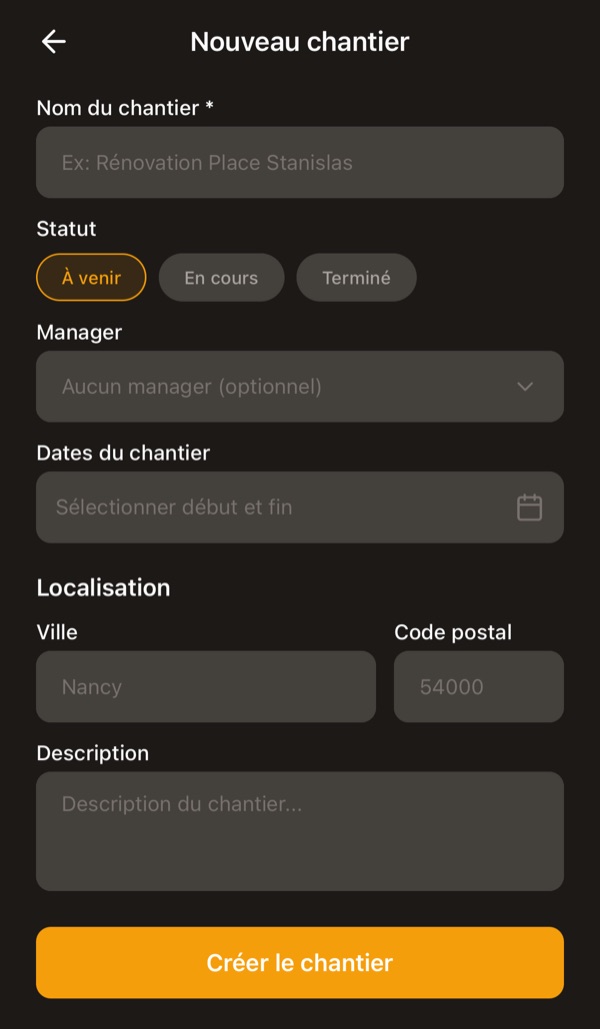
- Enter the Site name, the only required field, then choose its Status: Upcoming, In progress or Completed.
- If needed, choose a Manager and the Site dates. Under Location, start typing the City and tap the right suggestion: the postcode fills in and the Address field appears. Choose the address the same way to place the site on the map.
- Tap Create the site.
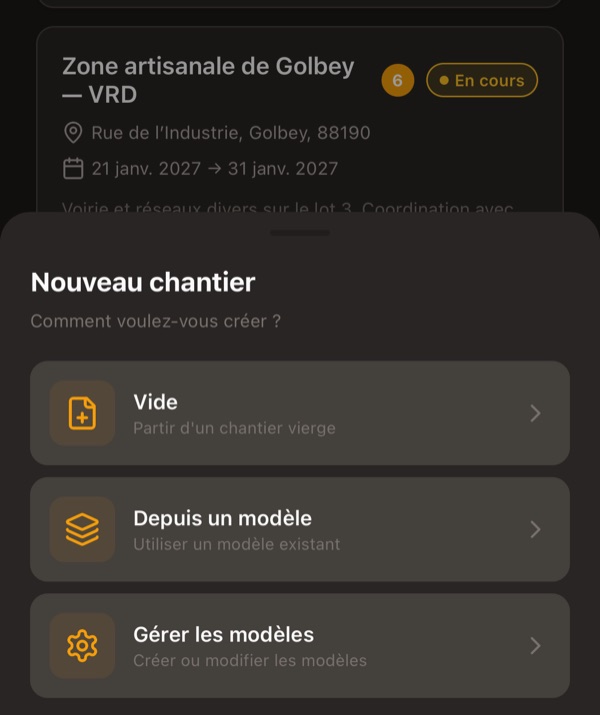
Often doing the same type of site? Tap From a template in step 2: the site takes over the template's steps (see How do you create and use site templates?).
From the dashboard
- Open Sites in the menu, then click New site.
- Fill in the Site name and, if needed, the description, address, status, dates and Site manager.
- Click Create site: the site's page opens.
Add the team
Open the site, Team tab, then Add a member. Each person added gets the permissions of their role there (see What can each role do?).
Good to know
- You always see and manage the sites you created, without having to add yourself to them.
- The manager chosen at creation is added to the site's team, with the Manager role.
- Everything can be edited afterwards: tap the pencil at the top of the site's page.
- Steps are added after creation, from the Steps tab or the Library (see How do you add steps from the library?).