Screenshots show the French version of the app.
Each person has a role in your company, chosen when you invite them. This role decides what they can do in Buildr: create sites, invite people, manage templates… It also gives them a role on the site when you add them to one, and this second role decides what they see there.
The five roles
| Role | What it can do |
|---|---|
| Admin | Everything: sees all the company's sites, invites, changes roles, sets permissions, handles Reports, archives sites. |
| Manager | Creates sites and Templates, invites employees, clients and network managers, adds members to their sites and manages their steps. They see the sites they belong to. |
| Employee | Sees the sites they have been added to: steps, photos, documents, discussions. They validate steps and report emergencies. |
| Client | Follows their site: discussions, photos and team. They do not validate steps, and have no Team tab in the menu. |
| Network manager | The contractor working on the network: views the site's regulatory documents, such as DT-DICT, follows emergencies, discusses them with the team and closes them once the problem is fixed. |
What each person sees on a site
When you add someone to a site, they get a role there based on their role in the company: an Admin or a Manager becomes Manager, an Employee becomes Worker, a Client stays Client and a Network manager stays Network manager. To begin with, each one sees:
| On the site | Discussions | Photos | Documents | Steps | Team |
|---|---|---|---|---|---|
| Manager | ✓ | ✓ | ✓ | ✓ | ✓ |
| Worker | ✓ | ✓ | ✓ | ✓ | ✓ |
| Client | ✓ | ✓ | — | — | ✓ |
| Network manager | — | — | ✓ (DICT only) | — | — |
The Edit site permission (edit the site's details, add or delete photos and documents) is not given to anyone at the start: you grant it to whoever needs it. A site's managers can edit its details and organize its steps in any case; archiving, restoring and deleting a site remain reserved for admins.
An administrator can change these values for the whole company: in the dashboard, open Settings, then the Default role permissions card. The Document types column says which documents each role sees; click it to change it.
Change a person's role
Administrators only.
In the dashboard
- Open Team in the menu, then click the person.
- In Change role, choose the new role.
- Click Save.
In the app
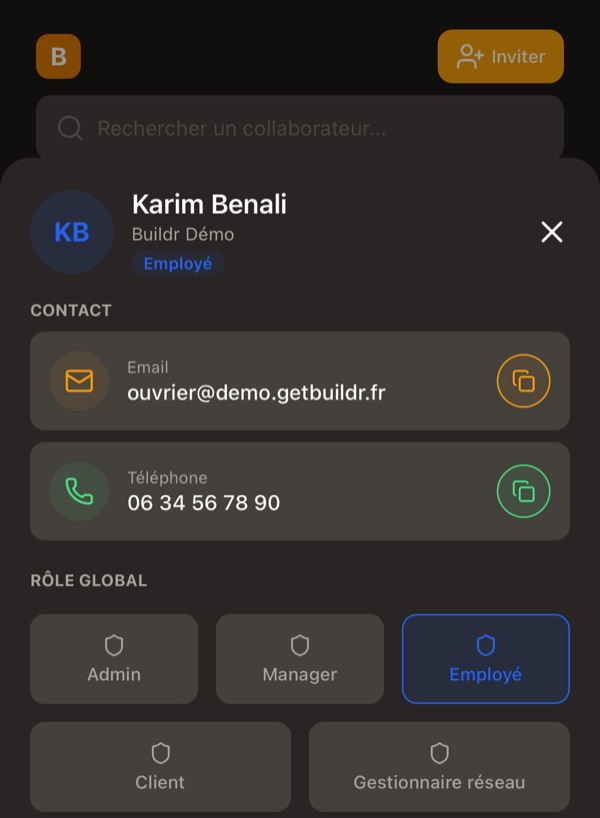
- Open the Team tab, then tap the person.
- Under GLOBAL ROLE, tap the new role: it applies straight away.
Adjust a person's permissions on a site
Administrators and the person who created the site only.
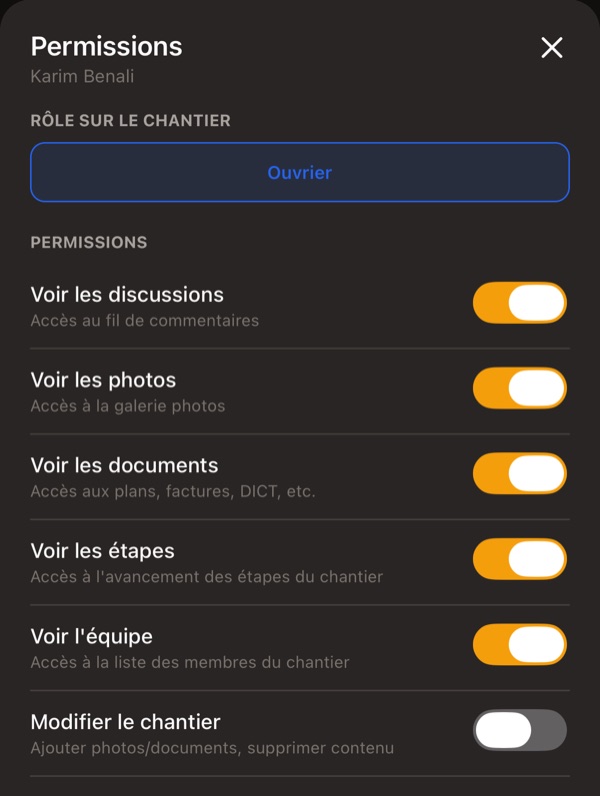
In the dashboard: open the site, Team tab, then click the shield to the right of the person. Tick or untick the permissions: each box is saved immediately.
In the app: open the site, Team tab, tap the person, then Manage permissions. Turn permissions on or off with the switches.
Choose which documents a person sees
The View documents permission can be limited to certain types: for example, a client sees plans and municipal orders, but not invoices or purchase orders.
- Open the person's permissions, as above, and leave View documents on.
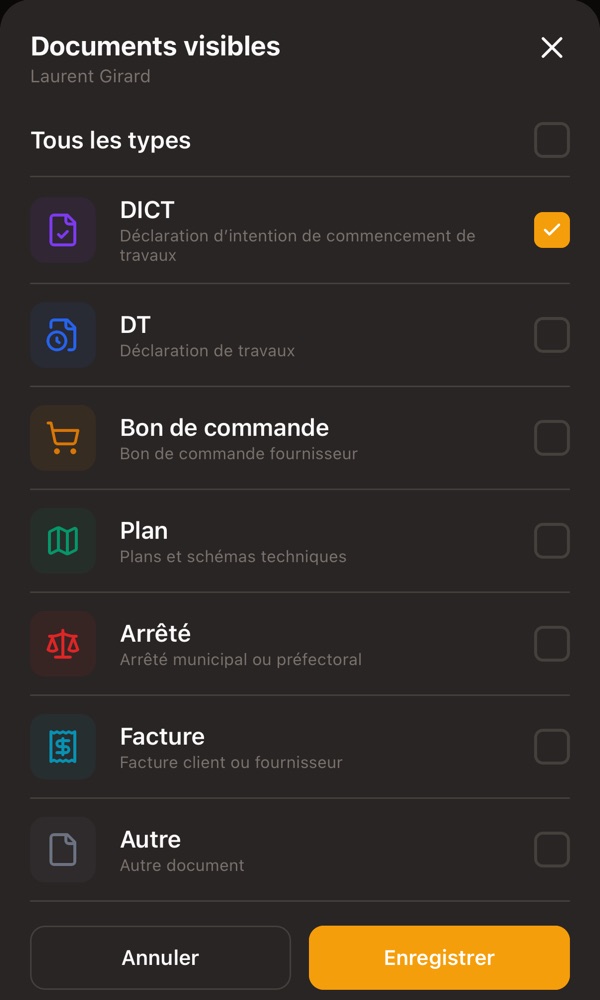
- Just below, tap the Visible types row ("Visible types: All" at the start). The Visible documents window opens.
- Tick the types they can see: Utility notice, Works declaration, Purchase order, Plan, Municipal order, Invoice, Other. All types ticks or unticks everything at once.
- Tap Save.
In the dashboard, it is the same row under the permission boxes, and the same window. For a whole role, in Default role permissions, click the Document types column.
The person no longer sees documents of the other types: neither in the list nor in their notifications. They cannot add any either, or reclassify a document into one of those types.
Good to know
- An administrator always has access to everything on the company's sites: their permissions cannot be changed, and Buildr shows Full access.
- Your company always keeps at least one administrator: appoint another one before removing this role from the last one.
- A Network manager only sees DICT at the start. You can open other types to them, plans for example.
- At least one type stays ticked: to show no documents at all, turn off View documents.
- Saving the Default role permissions also applies them to people already on your sites, including those you had adjusted by hand.