Screenshots show the French version of the app.
Each person on your team has their own Buildr account. To add someone, you send them an invitation by e-mail: they choose their password and join your company directly.
From the dashboard
- Sign in at app.getbuildr.fr and open Team in the menu.
- Click Invite, at the top right.
- Enter the person's email address.
- Choose their role (see below).
- Choose the Email language: this is the language in which they will receive their invitation.
- Click Send invitation.
From the app
- Open the Team tab, at the bottom of the screen.
- Tap Invite.
- Fill in the e-mail address, the e-mail language and the role.
- Tap Send invitation.
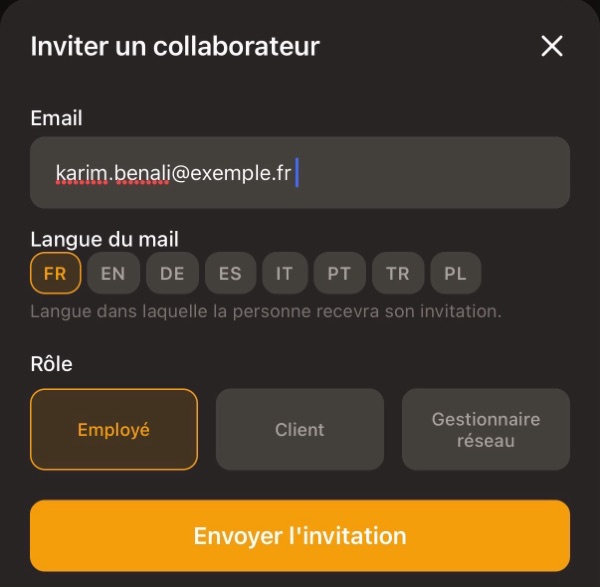
Which role should you choose?
| Role | For whom |
|---|---|
| Admin | Management: manages the team, the sites and each role's permissions. |
| Manager | The site manager: creates and follows sites, invites employees and clients. |
| Employee | The workers in the field: see their sites, validate steps, take photos. |
| Client | The project owner: follows their site through the discussions and photos, without changing anything. |
| Network manager | A network operator (Enedis, GRDF, Orange…): views the site's regulatory documents, such as DT-DICT. |
You can change a person's role at any time, from their profile in Team.
Track your invitations
Invitations that have not been accepted yet appear in Pending invitations, with their expiry date. An invitation is valid for 7 days.
- The person didn't receive anything? Ask them to check their spam folder, then invite them again: the new invitation replaces the old one.
- You got the address wrong? Cancel the invitation with the bin icon, then send it again to the right address (see How do you deactivate an account or resend an invitation?).
Good to know
- A manager can also invite, from the dashboard or the app, but only employees, clients and network managers.
- To invite an admin or a manager, use the dashboard: the app only offers the Employee, Client and Network manager roles.
- If the person already has a Buildr account with this address, they have nothing to create: the next time they sign in, they join your company.
- Once they have signed up, add them to the sites they work on: open the site, Team tab, then Add a member.