Screenshots show the French version of the app.
When someone leaves your company, you have two options: deactivate their account, which cuts off their access and can be undone at any time, or delete it permanently.
Deactivate an account
Reserved for administrators, in the app.
- Open the Team tab, at the bottom of the screen, then tap the person.
- Under STATUS, tap Deactivate the account. It is immediate, with no confirmation.
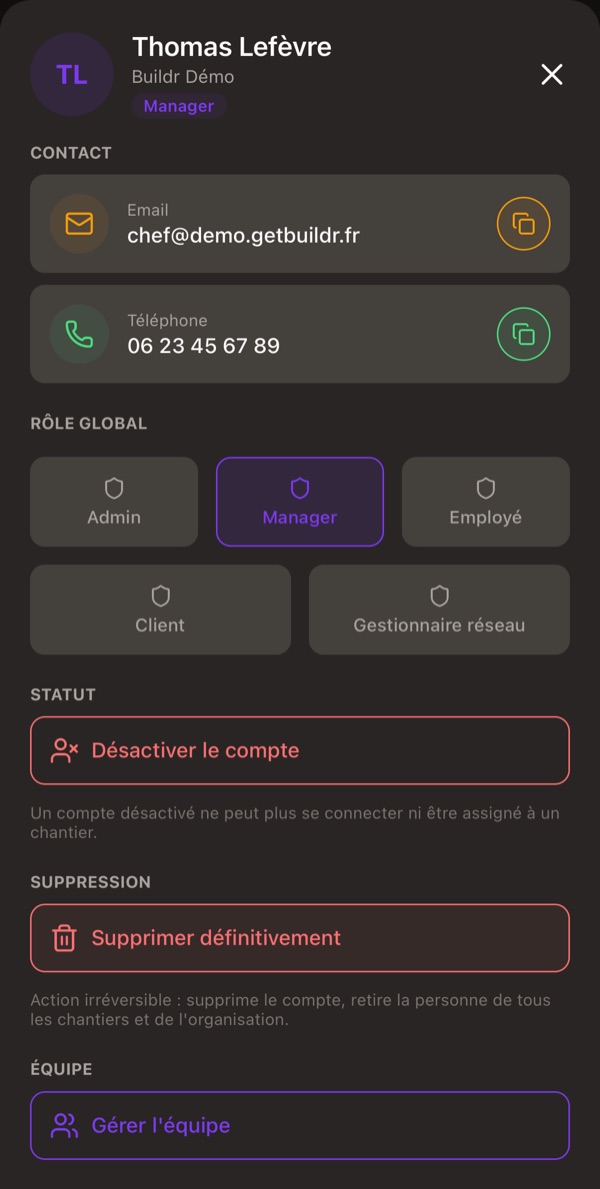
The person is logged out right away, on all their devices, and can no longer log in. They no longer receive any notifications, and their sites leave their Google or Outlook calendars; their iCal subscription stops. If you reactivate them, they will have to reconnect their calendars. They stay in the team list, marked (deactivated), and keep their place in the team of their sites: remove them from the sites if needed (see How do you add or remove someone from a site?). While they are deactivated, they can't be added to another site.
To give them access again, open their profile the same way and tap Reactivate the account.
Permanently delete an account
Reserved for administrators. Deletion cannot be undone.
In the app: Team tab, tap the person, then under DELETION, tap Delete permanently. Confirm with Delete.
In the dashboard
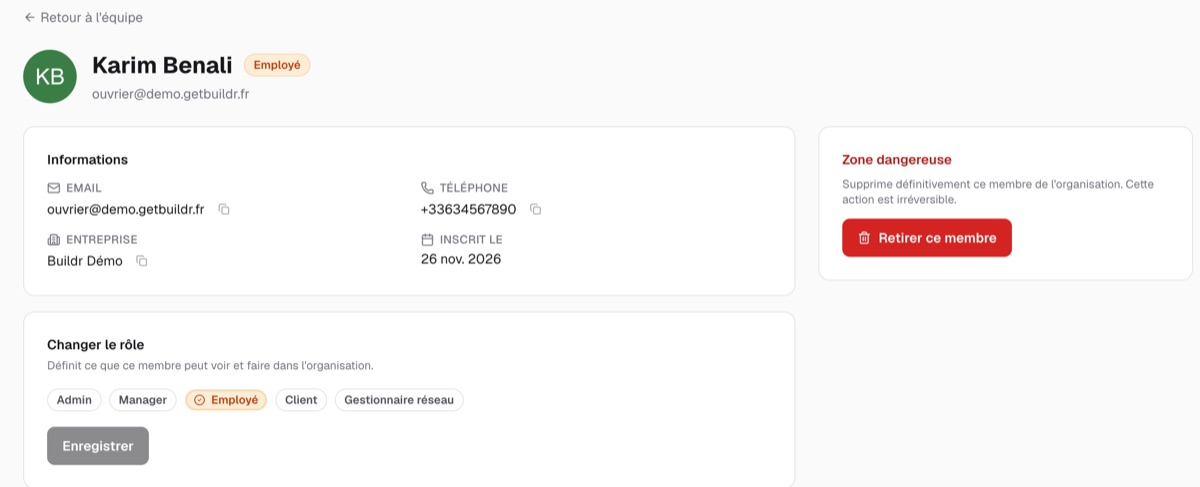
- Open Team in the menu, then click the person.
- In the Danger zone card, click Remove member.
- Confirm with Delete.
Despite its name, Remove member does delete the account. The person is removed from your company and from all their sites, and their account is destroyed. Their messages and photos stay on the sites, without their name.
Resend an invitation
There is no resend button: you invite the person again.
- Open Team (dashboard menu or app tab).
- Click Invite (tap in the app).
- Enter the same e-mail address, choose the role and the e-mail language.
- Confirm with Send invitation.
The new invitation replaces the old one: the link in the first e-mail no longer works, and the new one is valid for 7 days.
Cancel an invitation
Invitations not yet accepted are listed in Pending invitations, with their expiry date.
- In the dashboard: click the trash can to the right of the invitation. It is cancelled right away.
- In the app: tap the trash can to the right of the invitation, then Yes.
The e-mail link no longer works: the person sees "Invitation not found" if they open it.
Good to know
- Deactivation only exists in the app. In the dashboard, a deactivated account's profile is marked Inactive.
- You can neither deactivate nor delete your own account from the team. To delete yours, go to the Profile tab, Delete my account, in the app, or to Settings, Your data card, in the dashboard (see How do you delete your account?).
- Your company always keeps at least one administrator: appoint another one before deleting the last.
- If the person also works for another company on Buildr, deleting them only removes them from yours: they keep their account and their access to the other company. For the same reason, their account can't be deactivated.
- When you deactivate or delete an account, their reported messages and photos that haven't been handled yet are deleted.
- A manager can resend and cancel invitations, but can't deactivate or delete an account.
- An expired invitation disappears from the list: simply invite the person again.