Screenshots show the French version of the app.
Buildr sends you a notification on your phone when something happens on your sites: a message, an emergency, a photo… You choose what to receive, by type and by site.
Choose by type
- Open the Profile tab.
- Under NOTIFICATIONS, tap Notification settings.
- Under By type, turn off the switches for what doesn't interest you.
| Type | What is sent to you |
|---|---|
| Mentions | Someone mentions you with @, even if messages are turned off. |
| Messages | New messages in site and step discussions. |
| Emergencies and claims | New emergency or claim, its closing, and the messages in its thread. |
| Steps | Validated steps and sub-steps. |
| Photos | New photos added to a site. |
| Documents | New documents added to a site. |
| Added to a site | Someone adds you to a site's team. |
| Reports | Content or members reported in your organization (administrators only). |
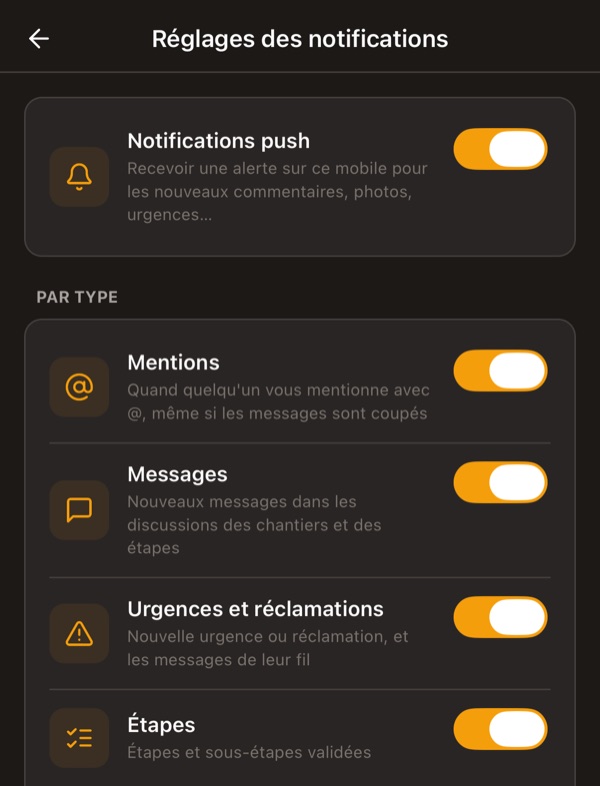
The same settings are in the dashboard: Settings, Notification settings card.
Set up a site
- Open the site.
- Tap the bell at the top of its page.
- Choose:
- Everything: all notifications for this site, according to your settings by type;
- Important only: only mentions and emergencies;
- Nothing: no notifications for this site.
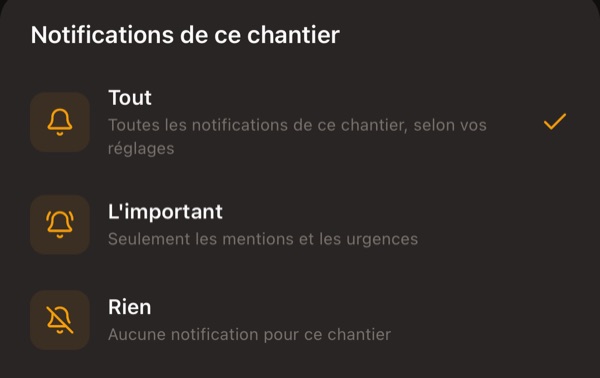
Sites set to Important only or Nothing appear in Notification settings, under Muted sites. Tap Receive everything to restore a site.
Turn everything off
At the top of Notification settings, the Push notifications switch turns off all your notifications, on all your phones. Your settings by type are kept and come back when you turn it back on.
Good to know
- You receive nothing for what you do yourself.
- You are only notified of what your permissions on the site allow you to see: without permission to see photos, no photo notifications.
- If nothing arrives even though everything is turned on, check that Buildr is allowed to send notifications in your phone's settings.
- These settings only concern notifications: you still see everything in the app, with the unread message badges.