Screenshots show the French version of the app.
An emergency is a photo of the problem, the exact place where it was taken and a discussion thread to get organized. The whole site team is notified right away.
Report an emergency
In the Sites tab, open the site.
Tap the Emergencies tab.
Tap Report an emergency.
Give it a short title that says what it is about (for example "Leak at the north manhole"): it is what people read in the list and in the notification.
Choose Camera to photograph the problem now, or Gallery for a photo already taken. From the gallery, you can pick several, to show the problem from several angles.
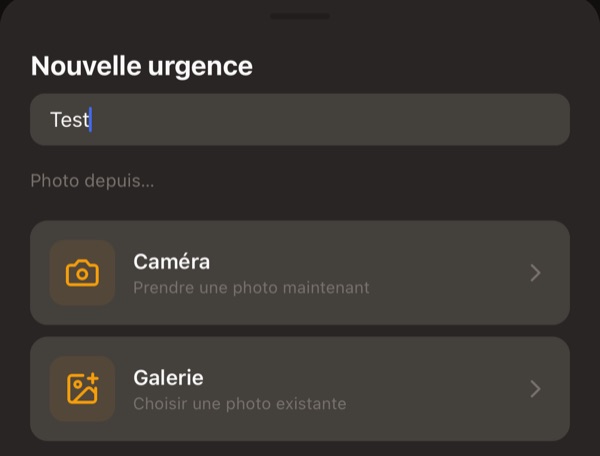
The emergency is created as soon as the photo is sent, with the phone's GPS position. The site members receive a notification with its title.
Add details and follow the emergency
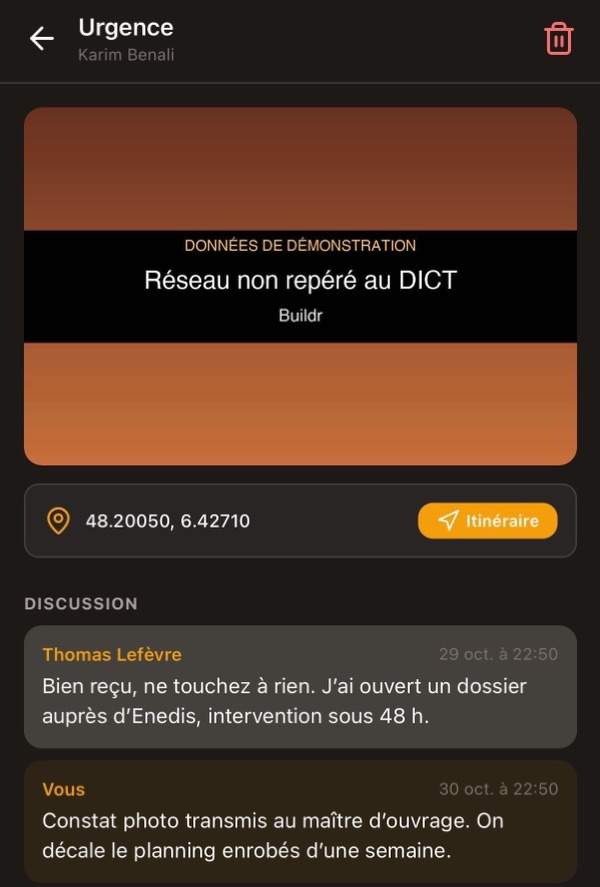
- Tap the emergency in the list.
- Under DISCUSSION, describe the problem: what happened, what needs to be brought, who is handling it. This first message then appears under the title, in the list.
- Tap Directions to go to the exact spot where the photo was taken.
Good to know
- If the photo comes from the gallery, Buildr uses the place where it was taken. Otherwise, it asks for the phone's position; without GPS, the emergency is still sent, marked No GPS.
- Allow access to your location when the app asks: that is what makes it possible to find the exact spot of the problem.
- Clients do not report emergencies: their tab is called Claims and their button File a claim. Admins and managers see both, under External incident and Claims.
- The network manager does not report emergencies: they are the contractor who steps in. They follow them and close them once the problem is fixed (see How do you follow up and close an emergency?).