Screenshots show the French version of the app.
Each site has its own discussion thread, and each step has its own too. Everything said stays attached to the site: a newcomer finds the history.
Write a message
- In the Sites tab, open the site.
- Tap the Discussions tab.
- Write in the Write a comment... field and tap the send button.
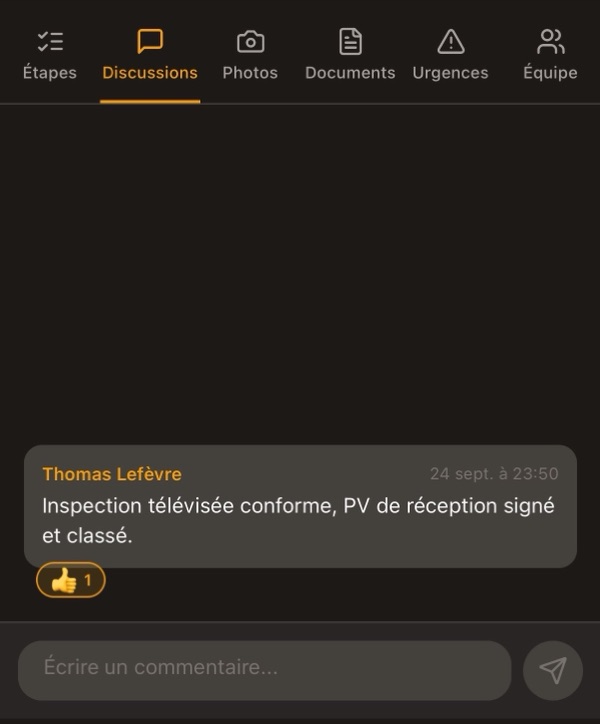
To talk about a specific step, open the Steps tab instead and tap the step's small bubble: it has its own thread.
Mention a colleague
Type @ in your message: the list of the site's members appears. Tap a name. The person receives a notification, even if they have turned off message notifications.
Reply, react
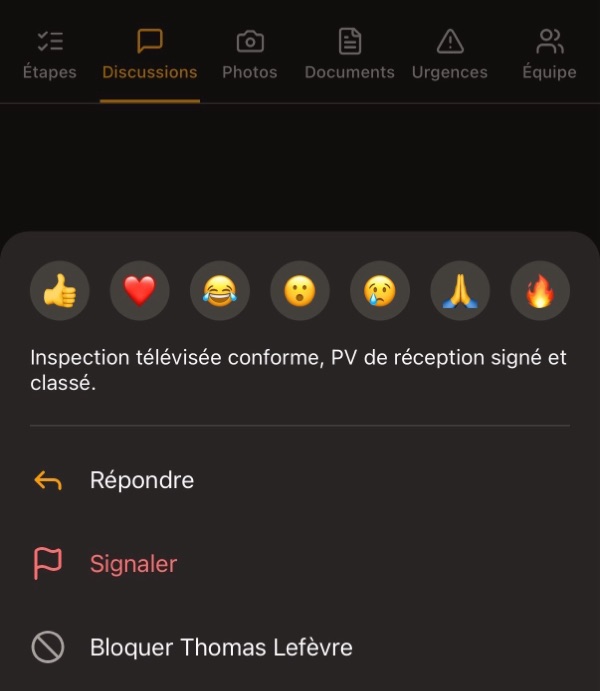
Press and hold a colleague's message. At the top, tap an emoji to react. Below:
- Reply: your message will quote theirs.
- Report: the message is passed on to your company's administrator.
- Block followed by their name: you no longer see their messages or photos; the person isn't informed.
Edit or delete your message
Press and hold your own message, then tap Edit or Delete.
Good to know
- A badge on a step indicates new messages in its thread.
- At the bottom of the screen, a badge on the Sites tab counts everything you haven't seen yet on your sites: messages, photos, documents and emergencies. In the list, each site has its own badge.
- To choose which messages you're notified about, or mute a site that's too chatty, go to Profile, then Notification settings.
- On an archived site, the discussion can be read but no longer written in.