Screenshots show the French version of the app.
Each site is split into numbered steps, themselves divided into sub-steps. The Steps tab shows what is done and what is left to do.
See the progress
- In the Sites tab, open the site: it opens on the Steps tab.
- To the right of each step, the counter shows the completed sub-steps, for example 2/5.
- Tap a step to collapse or expand its sub-steps.
A completed sub-step has a green box and its name crossed out; a completed step is also greyed out. The comment and photos of the completion are shown below it.
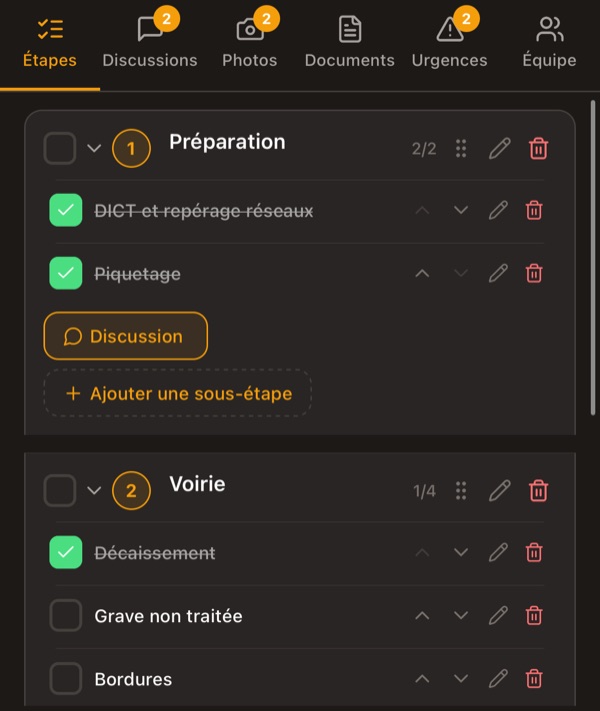
Tick off a sub-step
- Tap the box to the left of the finished sub-step.
- The Complete the sub-step window opens: add a comment and a photo if needed.
- Tap Confirm.
For the whole step, tap the box to the left of its name: the Complete the step window opens the same way (see How do you complete a step with a photo?).
Discuss a step
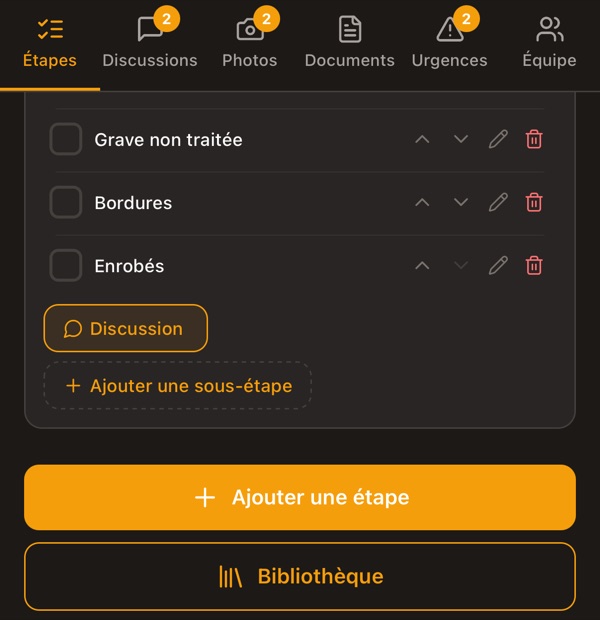
Expand the step and tap Discussion, below its sub-steps: the thread only concerns this step. The number of messages is shown next to it, and an orange dot near the step number flags messages you have not read.
Organize the steps
If you can edit the site's steps:
- Add a step or Library, below the list, to create one or start from a template step.
- Add a sub-step, below the sub-steps of an expanded step.
- The pencil renames, the bin deletes.
- To move a step, press and hold it (or its handle, on the right) until it lifts, drag it above or below, then release.
- Sub-steps move the same way, directly in the expanded step: press and hold a sub-step, drag it into place, release. A sub-step stays in its step.
- With VoiceOver or TalkBack, the Move up and Move down actions move the selected step or sub-step.
Good to know
- Completing a step does not tick its sub-steps, and vice versa: each one is completed separately.
- The whole site team can tick, except clients.
- Organizing the steps is reserved for admins, the person who created the site, the site's managers and those with the Edit the site permission (see What can each role do?).
- Ticked by mistake? Tap the green box again: the sub-step goes back to to-do.
- On the dashboard, hover over a step or a sub-step: the pencil renames it (Enter to save, Esc to cancel), the bin deletes it, and the handle on its left lets you drag it into place.