Screenshots show the French version of the app.
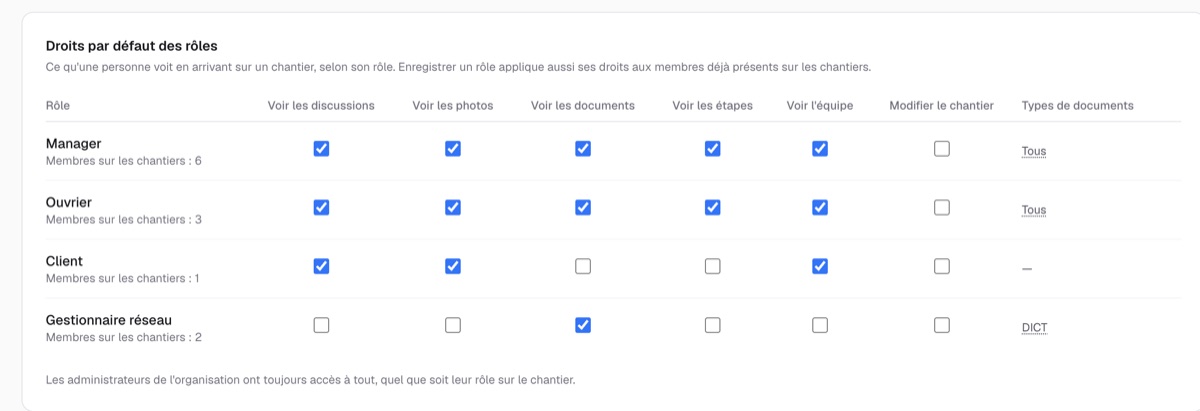
Each role on a site (Manager, Worker, Client, Network manager) comes with starting permissions: view discussions, photos, documents… Buildr suggests some (see the table in What can each role do?), and you can change them for your whole company.
Administrators only, in the dashboard.
Open the setting
In the dashboard, open Settings, then scroll down to the Default role permissions card.
The table has one row per role and one column per permission: View discussions, View photos, View documents, View steps, View team, Edit site, then Document types. Under each role, Members on sites shows how many places this role takes up on your sites, and customized appears if you have already changed it.
Change a role's permissions
- On the role's row, tick or untick the permissions.
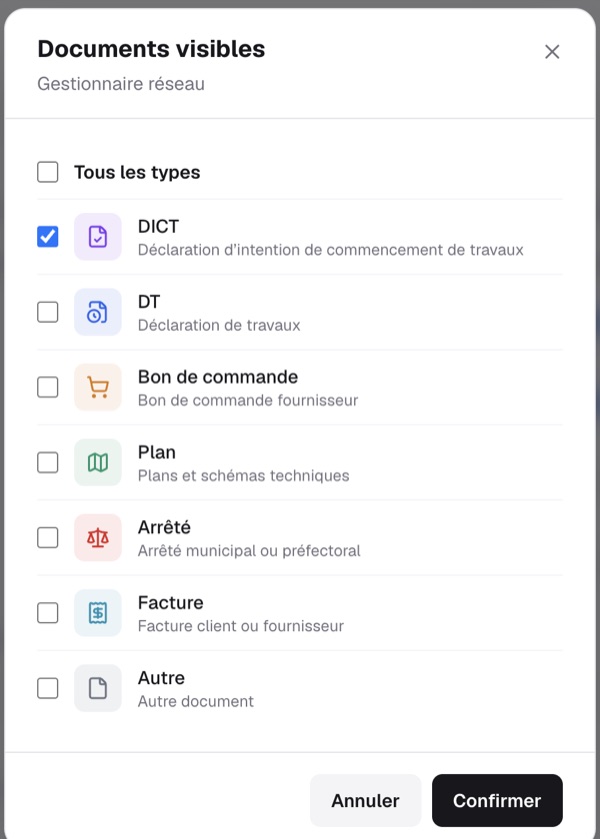
- To limit the visible documents, click the Document types column ("All" at the start). In the Visible documents window, tick the types, then click Confirm.
- Click Save and apply, at the end of the row. Cancel discards your changes.
- A window shows how many members will be affected: "The permissions of … member(s) will be replaced on every site in the organization, including those adjusted by hand." Confirm with Save and apply.
Each role is saved separately: edit and save one row at a time.
What changes
- Straight away, for everyone with this role already on your sites, including archived sites. Any permissions you had adjusted by hand for one of them are replaced.
- Afterwards, for each manager or worker you add to a site.
Go back to Buildr's values
- On the row of a role marked customized, click Original values.
- Confirm with Original values. The permissions suggested by Buildr apply again to everyone with this role.
Good to know
- Administrators don't appear in a separate row: they always have access to everything, whatever their role on the site.
- The Worker row covers employees, the Manager row covers managers and administrators added to a site.
- Members on sites counts places, not people: a worker on three sites counts three times.
- As long as View documents is not ticked, the Document types column shows a dash. At least one type stays ticked: to show no documents at all, untick View documents.
- When you add a client or a network manager to a site, the add window is pre-filled with these permissions; you can still adjust them for that person before confirming.
- For a single person on a single site, set their permissions from the site's Team tab instead (see What can each role do?).