Screenshots show the French version of the app.
When a member of your team reports a message, a photo or a person (see How do you report content or block someone?), the report goes to your company's administrators. They handle it in the app or in the dashboard, with the same actions.
Get notified
- On your phone: a "Report" notification tells you which site is concerned. Tap it to open the app's Reports screen.
- In the app: the number of pending reports appears in red on the Reports line of the Profile tab.
- In the dashboard: a "New report to review" message is shown, with an Open button. The number of pending reports appears in red next to Reports, in the left-hand menu.
Neither the person targeted nor the author of the report receives this notification.
Review a report
Open the list of reports:
- in the app: Profile tab, MODERATION section, tap Reports;
- in the dashboard: open Reports in the left-hand menu.
The list opens on the Pending reports.
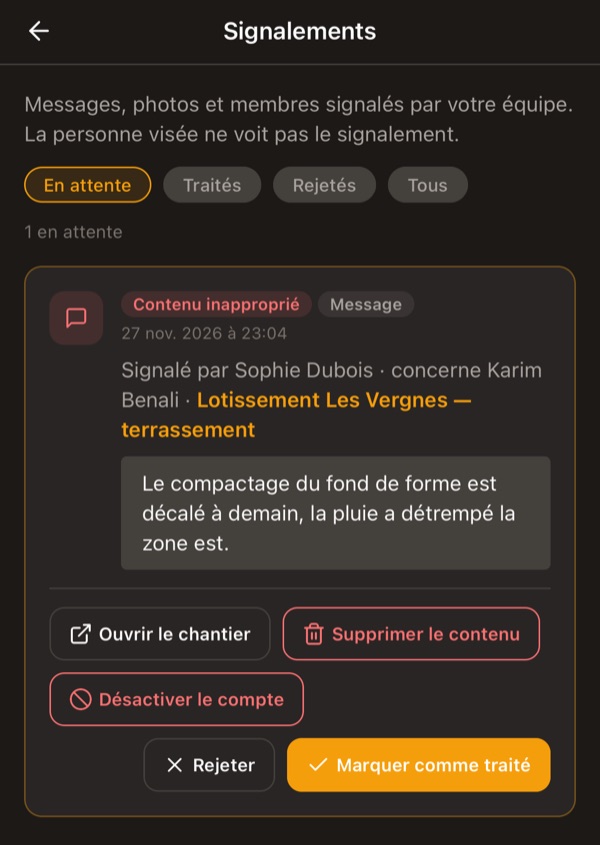
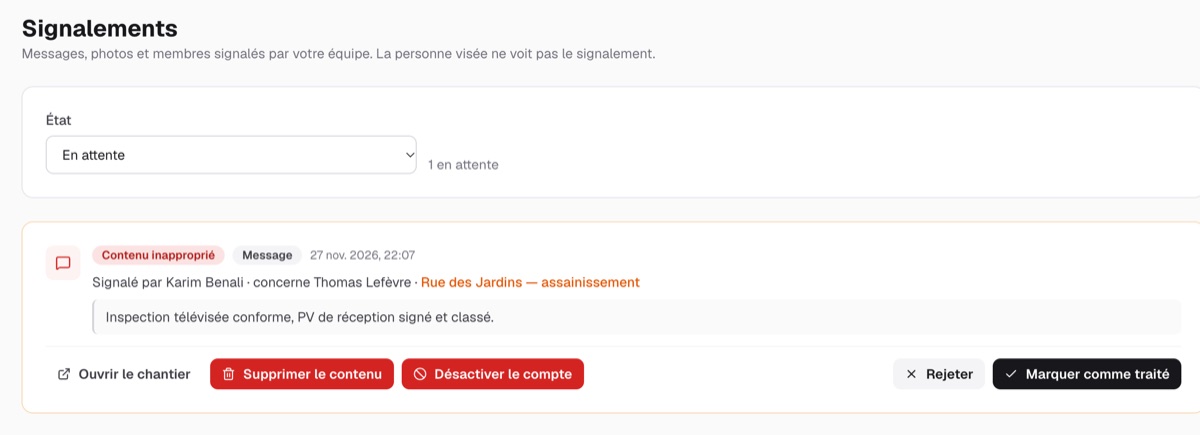
Read the card: the reason, what is targeted (Message, Photo, Member or Emergency message), who reported it, who is concerned, the site, an excerpt of the message and any details.
To see the content in context, tap or click Open the site. In the app, the site opens directly on the tab of the message or photo.
Act, then file
- Choose what to do:
- Delete content: the message or photo is permanently deleted, after confirmation;
- Deactivate account: after confirmation, the person is signed out immediately and can no longer sign in. Content reported against them and still pending is deleted at the same time;
- nothing, if the report is unfounded.
- File the report:
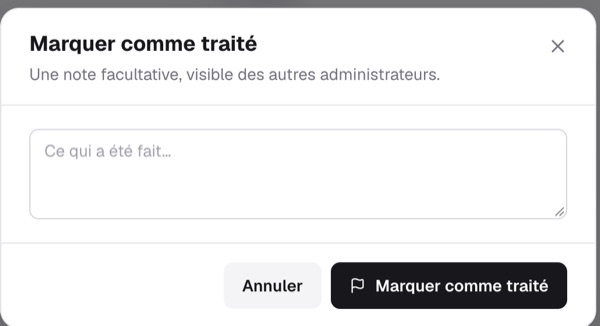
- Mark as resolved if you took action. A window opens: you can add a note there, visible to other administrators, then tap or click Mark as resolved again;
- Dismiss if there is nothing wrong.
Deleting the content does not file the report: it stays Pending, with the mention "This content has since been deleted.", until you mark it as resolved.
To find reports already filed, choose Resolved, Dismissed or All: at the top of the screen in the app, in the dashboard's Status list.
Good to know
- Only Admin users see the Reports line of the Profile and the dashboard's Reports page.
- You never see reports that target you. When an administrator is targeted, the report is marked Targets an administrator and the Buildr team is also notified.
- A deactivated account is reactivated from the app: Team tab, tap the person, then Reactivate the account (see How do you deactivate an account or resend an invitation?). Content deleted with the deactivation does not come back.
- To stop receiving these notifications, turn off Reports in your settings (see How do you choose the notifications you receive?). Reports remain visible in the app and in the dashboard.