Screenshots show the French version of the app.
A site is running late, changes its name or is finally starting? Update its details: the whole team sees the new information straight away. And to get there, the Directions button opens your navigation app.
Edit a site
In the app, for admins, the person who created the site, the site's managers and those with the Edit the site permission:
- In the Sites tab, open the site.
- Tap the pencil, at the top right. The Edit site screen opens.
- Change what you need: Site name *, Description, Status (Upcoming, In progress or Completed), Location and Site dates.
- Tap Save.
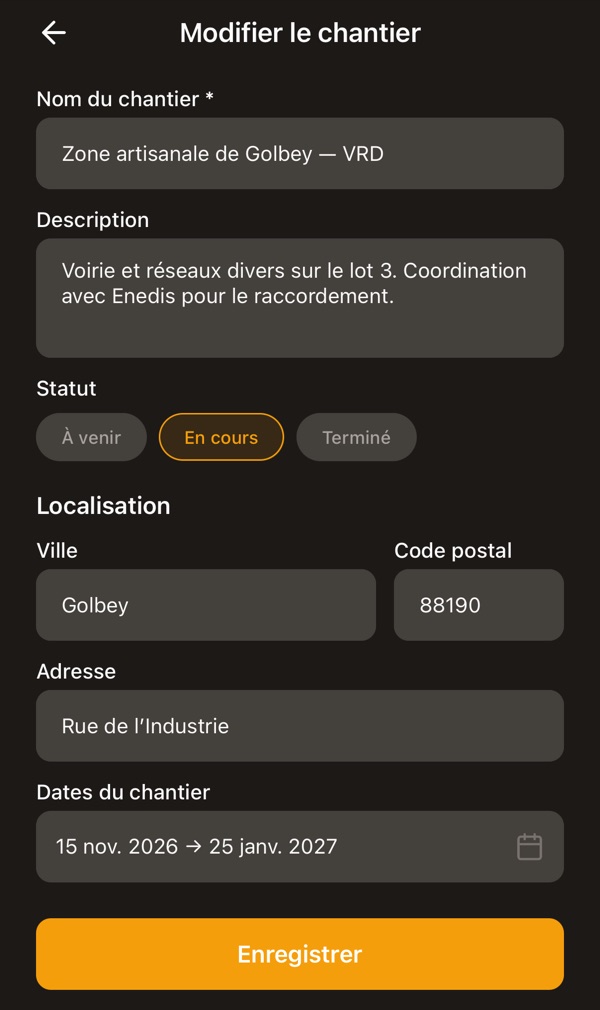
To change the address, start typing the City and tap the right suggestion, then do the same for the Address. The address chosen from the suggestions is what places the site on the map and drives the Directions button.
Get directions
In the app:
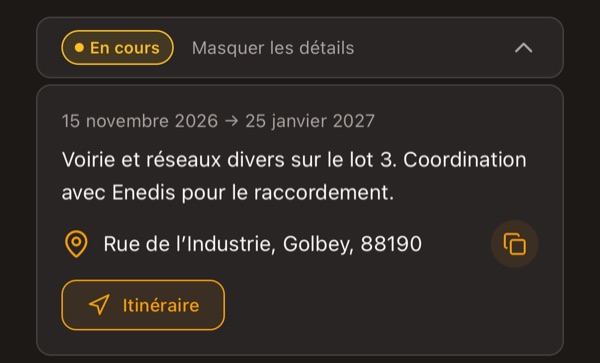
- Open the site. Its details appear at the top of the screen; if they are hidden, tap Show details.
- Tap Directions: your navigation app opens, with the site as the destination.
- To send the address to someone, tap the copy icon to the right of the address. It turns into a green tick: the address is copied, paste it wherever you like.
On the dashboard, open the site: in the Overview tab, Details card, click Directions. Google Maps opens in a new tab.
Good to know
- On iPhone, Directions opens Apple Maps; on Android, your maps app.
- The Directions button only appears if the address was chosen from the suggestions. Otherwise, copy the address.
- A change of name, address or dates is carried over to the team's synced calendars (see How do you see your sites in your calendar?).
- An archived site cannot be edited: restore it first (see How do you archive and restore a site?).
- A site's details cannot be edited from the dashboard.
- Archiving, restoring and deleting a site remain reserved for admins.