Screenshots show the French version of the app.
A finished site cluttering your list? Archive it: it leaves the Sites tab and moves to the Archives, with its steps, photos, documents and discussions. Only an admin can archive a site, from the app.
Archive a site
- In the Sites tab, open the site.
- At the top right, tap the archive box icon, between the pencil and the red trash can.
- Confirm with Archive. You return to the list.

The site switches to the Completed status. Don't confuse the archive with the red trash can: Delete permanently erases the site and all its data.
View the archives
- Tap the Archives tab.
- To find a site, type its name, address or city in Search in archives....
- Each site shows its archiving date (Archived on …) and, in red, its remaining retention period (Auto-delete in …).
- Tap a site to open it: steps, photos, documents, discussions and team can be viewed, but no longer edited.

On the dashboard, open Archives in the menu: you'll find the same sites there, to view. Their page shows the Archived label and a Retention card.
Restore a site
Reserved for admins.
- In the Archives tab, tap the restore icon (a box with an arrow), to the right of the site's name.
- Confirm with Unarchive.
- The site returns to the Sites tab, still with the Completed status. If work resumes, change its status with the pencil (see How do you edit a site and get directions?).
Several sites to restore? Long-press one of them, check the others, then tap the restore icon in the top bar and confirm with Unarchive. In that bar, the red trash can permanently deletes the selection.
From an archived site's page, the restore icon at the top right also restores it, after confirming with Unarchive.
Choose the retention period
The default period is 5 years, between 1 and 10 years. An admin sets it for the whole company:
- in the app, Profile tab, ARCHIVES section: Keep archived sites for, then tap the save icon;
- on the dashboard, Settings, Active organization card: Archived sites retention (years), then Save.
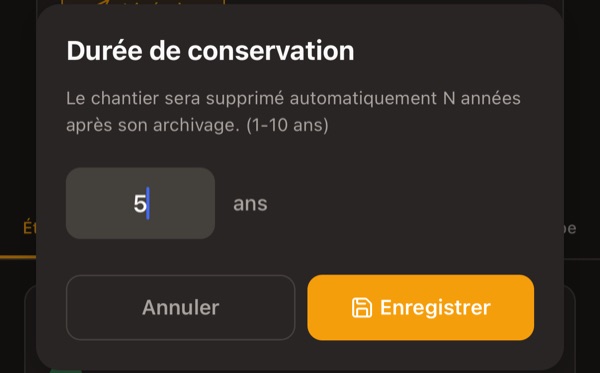
It applies to sites archived afterwards. To change it for a site that is already archived, open it in the app, tap Edit next to Auto-delete in …, enter the number of years in the Retention period window, then tap Save. The period is counted from the archiving date. When it ends, the site is permanently deleted, with its photos, documents and discussions; restore it beforehand if you want to keep it.
Good to know
- An archived site disappears from the team's synced calendars, and comes back when you restore it.
- In Archives, everyone finds the sites they were part of; an admin sees them all.
- An archived site no longer appears in the search or on the map of the Sites tab.
- Archiving, restoring from the site's page and the retention period can only be managed in the app.