Screenshots show the French version of the app.
The Sites tab lists your sites in progress, upcoming and completed. When the list gets longer, search, filters and the map take you straight to the right one.
Search and filter in the app
- Tap the Sites tab.
- In Search a site..., type a word from the name, address, city, postcode or description.
- To keep only one status, tap Upcoming, In progress or Completed. Tap All to see everything again.
- Tap the site to open it.
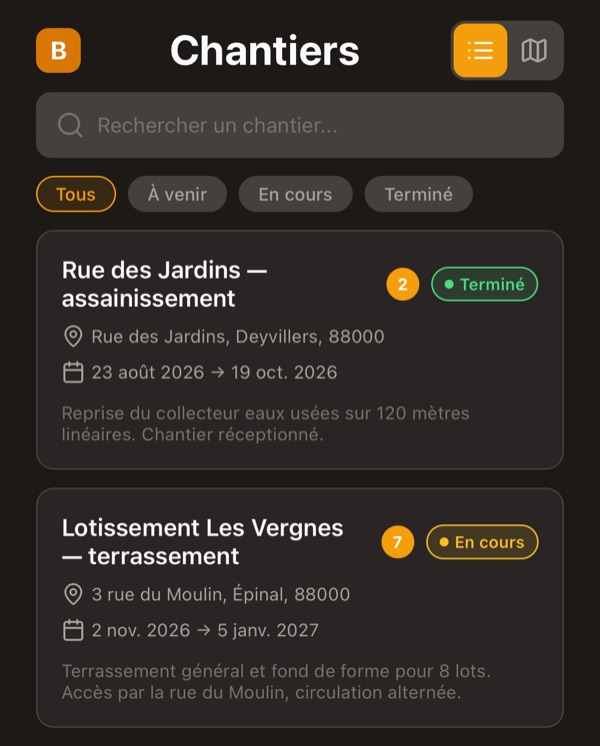
Search and filter combine: "Épinal" with In progress only shows the sites in progress in Épinal.
See your sites on the map
- In the Sites tab, tap the map icon, at the top right, next to the list icon.
- Each site is a dot marked with the first letter of its name. Its color gives the status: blue for Upcoming, orange for In progress, green for Completed.
- Tap a dot: the site's name, address and status appear.
- Tap Open the site →.
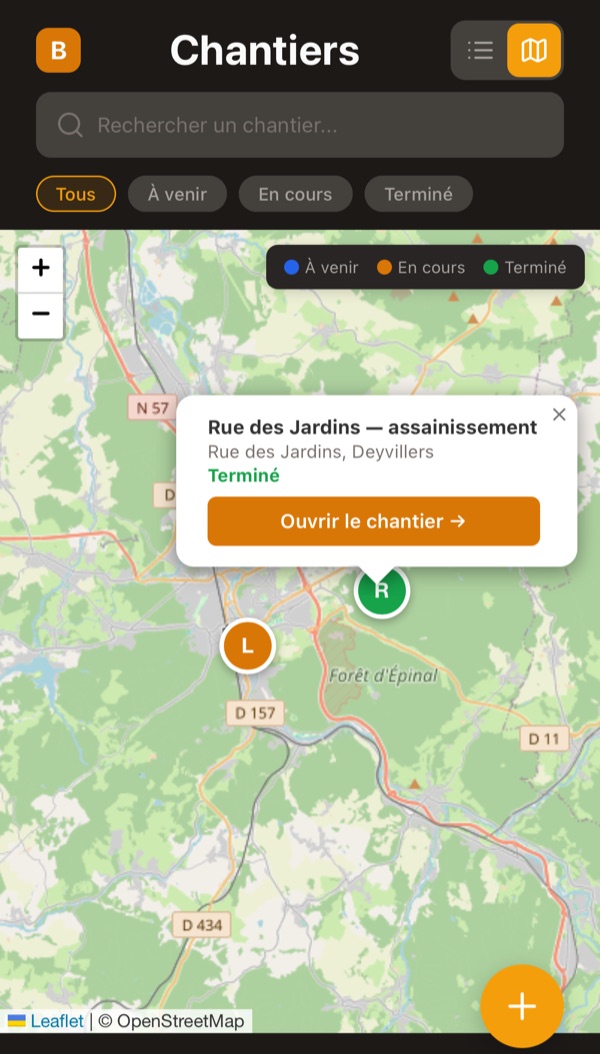
The map follows the search and filter you have chosen. Tap the list icon to go back to the list.
From the dashboard
- Open Sites in the menu. The number of active sites appears under the title.
- Type in Search by name, address, city….
- Click All, Upcoming, In progress or Completed.
- Click the site to open its page.
The dashboard has no map: it only exists in the app.
Good to know
- An admin sees all the company's sites. Others see the sites they belong to and those they created.
- The badge next to a site's name counts the new items you haven't seen yet.
- Only sites whose address was chosen from the suggestions appear on the map. Otherwise, the app shows "No site has GPS coordinates.".
- An archived site appears neither in the list nor on the map: look for it in Archives (see How do you archive and restore a site?).