Screenshots show the French version of the app.
The company carrying out your work has invited you to Buildr to follow your site. You see the sites it has added you to, in the app's Sites tab.
Open your site
- Log in to the app (see How do you install the app and log in?).
- In the Sites tab, tap your site.
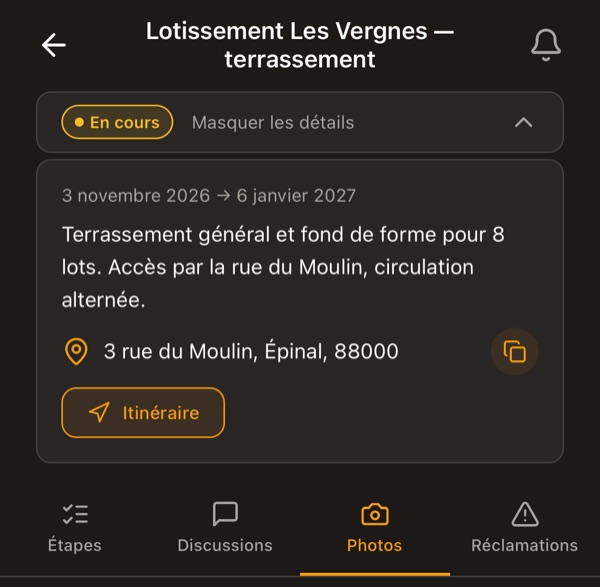
- Choose a tab at the top of the page.
What you see
By default, a client sees these tabs:
| Tab | What you do there |
|---|---|
| Discussions | Read the team's messages, reply, react and mention someone with @. |
| Photos | See the photos taken by the team on the site. |
| Claims | Report a problem to the company and follow your claims. |
| Team | See who works on the site. |
The company sets what you see, and can change it: open the Steps tab for you to follow progress, the Documents tab to view plans or municipal orders, or on the contrary close a tab. Documents can be limited to certain types: for example, you see the plans but not the invoices. If something is missing, ask the company.
File a claim
A defect, damage, a nuisance around the site: report it with a photo.
- Open the site, then the Claims tab.
- Tap File a claim.
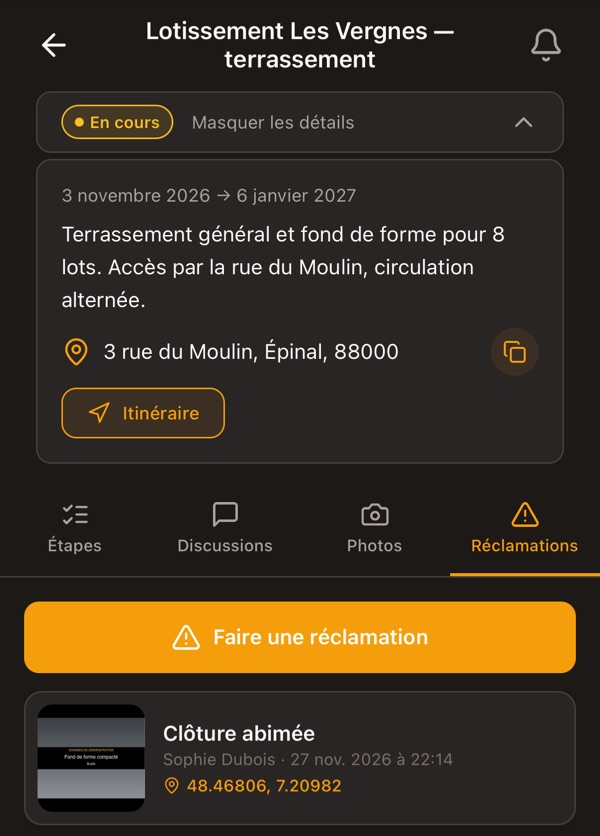
- In New claim, give it a short title, for example "Damaged fence on the street side".
- Tap Camera to take a photo, or Gallery to choose one or more.
The claim is sent as soon as the photo is chosen, with the place where it was taken. The site's managers and the company's administrators are notified right away. The site's other clients see it too; the workers don't.
Follow a claim
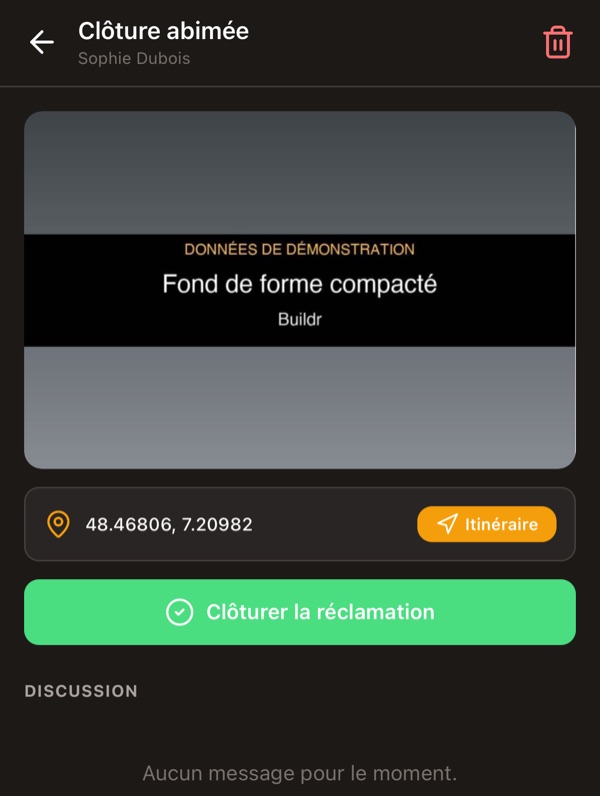
Tap a claim to see its photos and talk with the company under DISCUSSION. Once the problem is solved, you or the company tap Close the claim: it moves to the bottom of the list, under CLOSED. If the problem comes back, open it and tap Reopen.
What you can't do
- Check off or validate the site's steps.
- Add or delete photos and documents, unless the company gives you permission.
- See the emergencies reported by the team on the site.
- Invite someone, or add someone to the site.
Good to know
- You receive a notification for new messages, new photos and your claims: new claim, closing and messages in their discussion. You choose which ones to keep (see How do you choose the notifications you receive?).
- You can delete a claim you filed.
- From a computer, find your site at app.getbuildr.fr, with the same login details. You'll find the same tabs there, plus an Overview, and the button is called New claim.