Screenshots show the French version of the app.
Trench, basement, poor coverage: the app keeps working without a network. A banner at the top of the screen tells you where things stand.
Know whether you are connected
At the top of the screen:
- Offline (grey banner): the app can no longer reach Buildr. What you see dates from your last connection.
- Offline · 3 to send: on top of that, 3 photos are waiting for the network to return.
- Sending · 3 (orange banner): the network is back, the photos are being sent.
No banner means everything is up to date.
What works without a network
- View the sites, steps, photos and messages you opened in the last 24 hours.
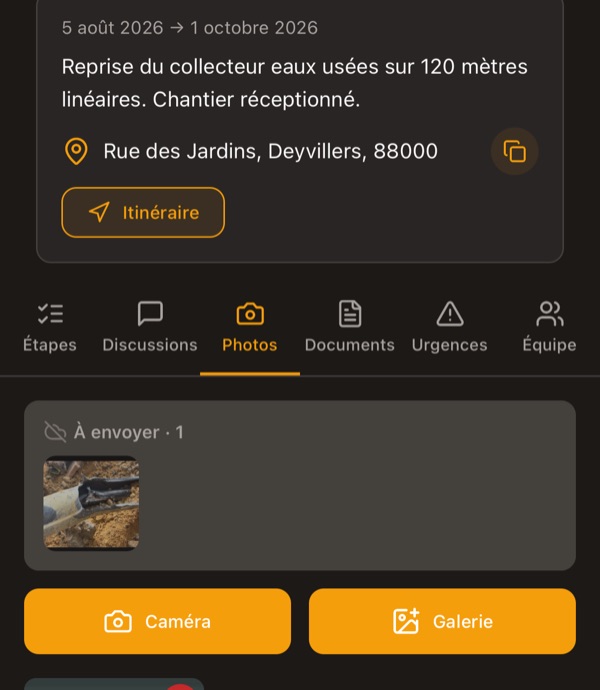
- Take photos in a site's Photos tab, with Camera or Gallery. The message "No network: the photo is saved and will be sent as soon as the connection returns." confirms it is kept.
Your pending photos
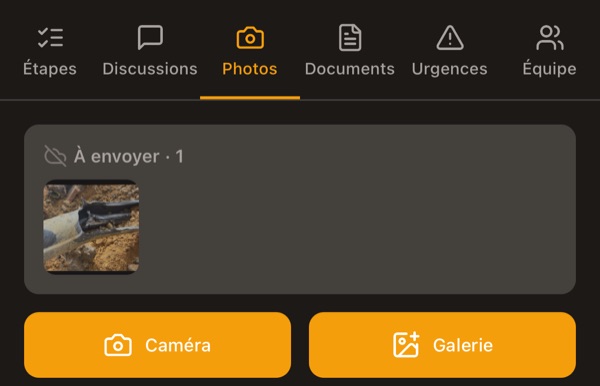
- Open the site's Photos tab: your pending photos appear under To send, apart from the others. Until they have been sent, only you can see them.
- When the network returns, they are sent on their own, without you touching anything. They keep the time you took them, not the time they were sent.
- If a photo shows Sending failed, tap the arrow (Try again) to send it again, or the bin (Discard) to delete it.
What needs a network
Ticking a step, writing a message, reporting an emergency or opening a document require a connection. Without a network, the app shows "No connection to the server. Check your network and try again.": nothing is sent, try again once the network is back.
Good to know
- Connected to the site office Wi-Fi with no Internet access? The app notices and switches to Offline.
- You leave the app while an emergency is being sent (a call, another photo)? Sending resumes when you come back to the app.
- Pending photos stay on the phone even if you close the app: they will be sent the next time it is launched with a network.