Screenshots show the French version of the app.
Your password is the same in the app and in the dashboard: you can reset it from either one. Buildr sends you a link by e-mail, and you choose the new password on the page it opens.
Request the link
In the app
- On the sign-in screen, tap Forgot your password?, just above the Sign in button.
- Enter the e-mail address of your Buildr account.
- Tap Send the link.
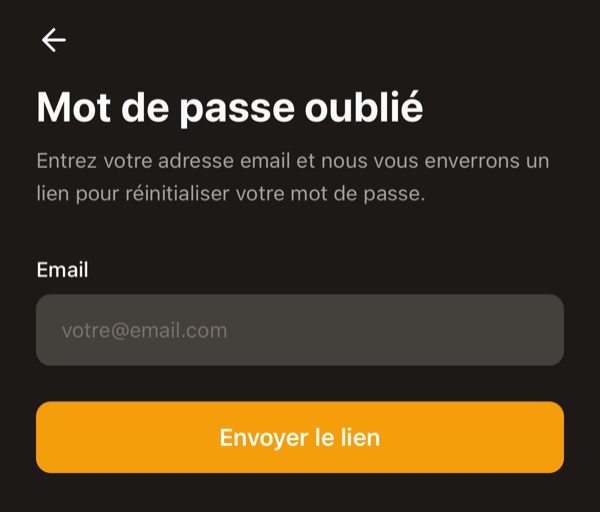
In the dashboard: on the sign-in page, click Forgot password?, enter your Email, then click Send link.
A message confirms it has been sent. It appears even if the address does not match any account: Buildr does not reveal which addresses are registered. Nothing received after a few minutes? Check the address you entered and your spam folder.
Choose a new password
- Open the e-mail "Buildr — Reset your password".
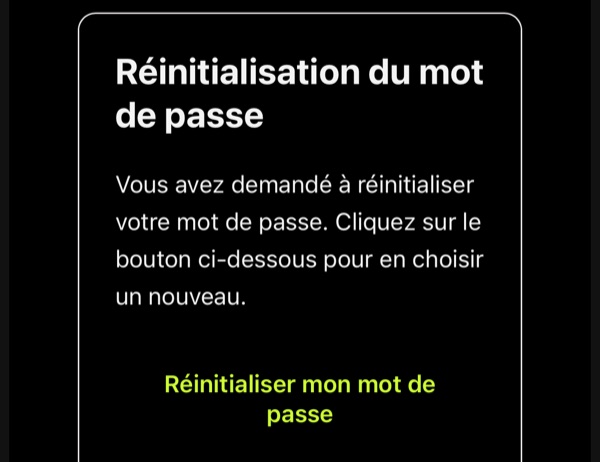
- Click Reset my password: a Buildr page opens in your browser, on phone as well as on computer. On a phone, you can also tap Open directly in the app, at the bottom of the e-mail.
- Enter the new password (at least 8 characters), then type it again in Confirm the password.
- Click Reset.
- Go back to the sign-in screen and sign in with your new password.
Afterwards
- You receive an e-mail "Buildr — Your password has been changed".
- Your other devices are signed out: sign in again with the new password in the app and in the dashboard.
Good to know
- The link is valid for 30 minutes. After that, Buildr shows "The link has expired": simply make a new request.
- Buildr refuses a password that appears in known data breaches. If this message appears, choose another one: the link remains valid.
- To protect your account, requests are limited to 5 per hour for the same address. Beyond that, wait before trying again.
- You didn't request anything and you receive this e-mail? Ignore it: your password does not change unless someone clicks the link.
- You know your password and just want to change it? In the app, open the Profile tab, then Change password under SECURITY.